

Quick Overview: Shopify International Shipping Comes Down to Zones and Rates
To start shipping internationally on Shopify, add the countries you want to sell to into a market, add those countries to a shipping zone, and set a shipping rate for that zone. All of this happens under Settings > Shipping and delivery in your Shopify admin, and you can choose from flat, order amount, and weight-based rates.
The right price for each rate usually comes from working backward from your carrier's rate table. This guide shows how to build Shopify weight-based rates from Japan Post's EMS prices for merchants shipping from Japan. It also covers what to watch for in international shipping: who pays duties, items you can't send by international mail, and how to check rates with a test checkout.
If you're still choosing a carrier, see our comparison of DHL, FedEx, EMS, and local couriers. This article focuses on the settings inside Shopify and how to price your shipping.
What You Need to Set Up to Ship Internationally on Shopify
Shipping internationally on Shopify involves three things: adding the country to a market, setting up shipping zones and rates, and entering product weights. If either of the first two is missing, international customers can't select a shipping rate at checkout and can't place an order.
- Add the country to a market: According to Shopify's Help Center, to sell to a particular country, that country must be included in an active market (a group of countries or regions you sell to)
- Set up shipping zones and rates: A shipping zone is a group of countries or regions that share the same shipping rates. You set rates for each zone
- Enter product weights: With weight-based rates, a product without a weight is treated as weightless, so customers may be charged a lower rate than you intended
Shopify Currently Has Two Shipping Setups (as of November 2026)
Shopify is gradually moving shipping from shipping profiles to shipping options by market. According to the Help Center, most stores still use shipping profiles, and existing rates are migrated automatically when a store is upgraded.
To see which setup your store uses, open Settings > Shipping and delivery. If you see shipping profiles, you're on the current setup. If you see a Shipping options section, your store has been upgraded. The steps in this guide use shipping profiles, which most stores still have.
How to Set Up International Shipping Zones and Rates on Shopify
To create an international shipping zone on Shopify, add a zone to a shipping profile, select the countries, and then add a shipping option with a rate. If every product ships at the same rate, the default General profile is all you need.
- In your Shopify admin, go to Settings > Shipping and delivery
- In the Shipping profiles section, click General profile
- In the Shipping zones section, click Add zone and enter a zone name (for example, Asia or North America)
- Select the countries and regions, then click Done
- Click Add shipping option, enter the name, rate type, and price, then click Done
- Click Save
As a rule, group countries that share the same shipping cost into one zone. If you ship with EMS, matching your zones to Japan Post's rate zones (Zones 1 to 5) lets you copy the rate table straight into Shopify.
Use a Custom Profile for Products With Different Rates
If some products need different rates, such as fragile or oversized items, create a custom shipping profile for them. According to the Help Center, you can create up to 99 custom profiles, and each product or variant can belong to only one profile.
Keep in mind that when an order contains products from different profiles, their rates are combined into a single shipping rate at checkout. Creating too many profiles can make shipping expensive for customers who buy several items.
Shopify Shipping Rate Types and When to Use Each
Shopify offers three manual rate types: flat, order amount, and weight. On top of these, carrier-calculated shipping shows live carrier rates at checkout.
| Rate type | How it works | Best for |
|---|---|---|
| Flat | Charges a fixed shipping price per order | Products of similar size and weight |
| Order amount | Changes the price by order value range | Stores that want a free shipping threshold |
| Weight | Changes the price by total cart weight range | International mail, where weight drives cost |
| Carrier-calculated | Shows rates from carriers such as UPS or FedEx at checkout | Stores that want rates close to actual carrier costs |
According to the Help Center, third-party carrier-calculated shipping is available on the Advanced and Plus plans. Grow stores can add it for an additional monthly fee or by switching to annual billing (as of November 2026).
How to Offer Free Shipping
To offer free shipping above a certain order value, edit the shipping option, select Offer free shipping, and enter the minimum order amount. Because international shipping costs much more than domestic shipping, reusing your domestic free shipping threshold for overseas orders can easily lose you money.
How to Price International Shipping: A Worked Example Using EMS Rates
The basic approach is to work backward from your carrier's rate table and set a price for each weight range that covers your actual cost. Here's an example of building Shopify weight-based rates from Japan Post's EMS (Express Mail Service) rates.
EMS Rates by Zone (as of November 2026)
EMS prices depend on the destination zone and the parcel weight. Here are the rates for common weights (in JPY).
| Weight | Zone 1 (China, South Korea, Taiwan) | Zone 2 (Other Asia) | Zone 3 (Oceania, Canada, Mexico, Middle East, Europe) | Zone 4 (United States) |
|---|---|---|---|---|
| Up to 500 g | 1,450 | 1,900 | 3,150 | 3,900 |
| Up to 1 kg | 2,200 | 3,150 | 4,400 | 5,300 |
| Up to 2 kg | 3,400 | 4,550 | 6,700 | 7,900 |
| Up to 5 kg | 6,400 | 8,150 | 13,000 | 15,100 |
In Japan Post's rate table, Zone 3 and Zone 4 prices include a special surcharge. A 1 kg parcel costs JPY 2,200 to Taiwan but JPY 5,300 to the United States, more than twice as much.
Example: Weight-Based Rates for the United States
Applying EMS prices directly to a US shipping zone gives you the following rates.
| Weight range in Shopify | Rate |
|---|---|
| 0–0.5 kg | JPY 3,900 |
| 0.5–1 kg | JPY 5,300 |
| 1–2 kg | JPY 7,900 |
| 2 kg and up (no maximum) | JPY 15,100 |
Watch for three things when setting this up.
- Account for packaging weight: According to the Help Center, weight-based rates include your store's default package weight. Set the default package weight to the weight of your box and padding so the calculated weight is closer to what you actually ship
- Leave the maximum empty on the top range: If you set a maximum, heavier orders will get a shipping error at checkout. The example above charges the 5 kg price for anything over 2 kg, so stores that ship heavier orders should add more ranges (EMS accepts up to 30 kg)
- Avoid gaps between ranges: According to the Help Center, if a cart weight falls into a gap, checkout uses the next highest weight-based rate, which can show an unexpectedly high price
Three Ways to Decide Who Pays for Shipping
If you ship one 1 kg product priced at JPY 6,000 to the United States, the EMS cost of JPY 5,300 is about 88% of the product price. There are three main ways to handle this.
| Approach | Customer pays | Store absorbs | Best for |
|---|---|---|---|
| Charge actual cost (weight-based) | JPY 5,300 | Almost nothing | Stores with products of many different weights |
| Build part into the product price (e.g., flat JPY 2,500) | JPY 2,500 | JPY 2,800 per item | Stores that want to avoid losing sales to high shipping costs |
| Free shipping over a threshold (e.g., JPY 30,000+) | JPY 0 on orders over JPY 30,000 | JPY 7,900 on a 2 kg order (about 26% of the order) | Stores with frequent multi-item orders and healthy margins |
If you build part of the cost into your prices, decide together with your margins whether to add the absorbed amount (JPY 2,800 in this example) to your international product prices. For a free shipping threshold, the safe choice is a level where even an order right at the threshold doesn't cost more to ship than it earns in gross profit.
What to Watch for When Shipping Internationally on Shopify
Beyond rates, decide in advance who pays duties, which items you can't send, how you'll create shipping labels, and how you'll explain shipping terms to customers.
Who Pays Duties and Import Taxes (DDP vs. DAP)
Import costs are handled under one of two terms: DDP (Delivered Duty Paid), where the seller covers them, and DAP (Delivered at Place), where the customer pays on delivery. According to Shopify's Help Center, under DAP the customer pays import costs to the carrier, and carriers may charge additional fees for collecting duties on delivery if they weren't paid in advance.
Shopify can also collect estimated duties and import taxes at checkout. The Help Center lists requirements such as having HS codes (the international product classification numbers used in customs) on your products and, if you buy shipping labels, using a carrier that supports DDP labels. Requirements and supported countries can change, so check the Help Center before turning this on.
Check Which Items You Can't Send by International Mail
According to Japan Post, dangerous goods for air transport, such as aerosol cans, perfume, nail polish, power banks, and e-cigarettes, can't be sent by international mail. They aren't accepted even by sea mail. Some destination countries also ban specific imports, so be especially careful with food and alcohol.
Create Labels With Japan Post's International Mail My Page Service
Japan Post requires its International Mail My Page Service to create labels for international mail, and handwritten labels aren't accepted. For items sent to EU member states and some other destinations, Japan Post recommends entering HS codes for the contents.
Publish a Shipping Information Page
Putting your shipping rates, estimated delivery times, and who pays duties on one page lets international customers understand your terms before they buy. Shopify's official blog also recommends listing international parcel rates on your shipping page if you ship overseas.
Run a Test Checkout to Confirm Your Rates
Once your setup is done, go through checkout with an international address and confirm the rates display correctly. According to the Help Center, an abandoned checkout keeps the rates from when it was created, so always test with a new checkout. If you see an error such as "Your order cannot be shipped to the selected address.", check that the country is in a market and a shipping zone, and that your weight ranges have no gaps.
Shopify vs. a Cross-Border Ecommerce Tool: Features and Costs
Shopify's strength is that you can fine-tune shipping, languages, currencies, and B2B in a single store. If you want to run international marketing with fewer people, there are other options too. Here's how the main items compare (as of November 2026, based on each company's official website).
| Item | Shopify | Leap |
|---|---|---|
| Monthly price | From JPY 4,850 (Basic, monthly billing) or JPY 3,650 (annual billing) | Free plan JPY 0; Starter from JPY 9,800 (excl. tax) |
| Fees | Shopify Payments online card rate of 3.55% on Basic (3.9% for international cards), lower on higher plans. Third-party payment providers incur a 2% transaction fee on Basic | 6% of sales (includes credit card processing fees) |
| Cross-border support (languages, currencies, payments) | Storefront translation, local currency pricing, and Shopify Markets on all plans | 22 major countries; USD, EUR, and JPY. Visa and Mastercard (bank transfer and invoice payment for B2B) |
| Marketing | Email campaigns, customer segments, marketing automation | Localization suggestions, automatic multilingual blog posts (Leap Basic plan and above), CRM, multilingual email newsletters |
| B2B | Shopify B2B (up to 3 catalogs on Basic to Advanced, unlimited on Plus) | Dedicated B2B cart (company-specific pricing, quote requests, invoice payment) |
| Customization | Highly extensible with apps and themes | Mainly templates and AI chat editing; Shopify is better for deep customization |
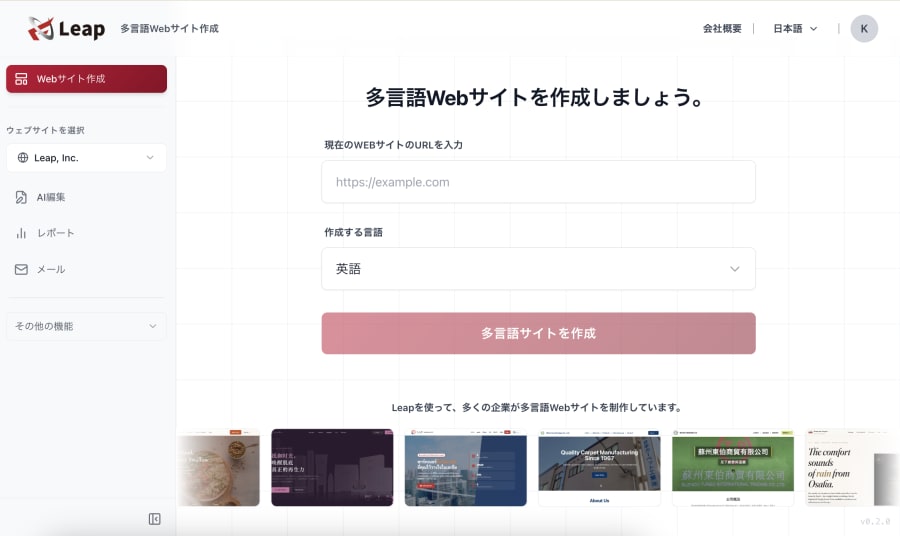
Shopify is a good fit if you want to fine-tune your shipping setup yourself or extend your store with apps. If you'd rather hand everything from multilingual site building to international marketing over to AI, Leap, a cross-border ecommerce tool that lets AI handle marketing too, is worth considering.
FAQ
Q. Where do I set international shipping rates in Shopify?
A. You set them under Settings > Shipping and delivery in your Shopify admin. Add a shipping zone that includes the international countries to a shipping profile, then add a shipping option (rate) to that zone. The country also needs to be included in a market.
Q. How do I stop shipping internationally and sell only domestically on Shopify?
A. Delete your international shipping zones and rates. Shopify's official blog advises checking that no international zones or rates are set up if you don't ship overseas, and deleting any you find from the "..." menu on the zone.
Q. What happens to shipping when products with different rates are in the same cart?
A. With shipping profiles, the rates from each profile are combined into a single shipping rate. With shipping options by market, only the highest matching rate within the same shipping option is charged.
Q. Can Shopify calculate shipping automatically from carrier rates?
A. Yes. Carrier-calculated shipping shows rates from carriers such as UPS and FedEx at checkout. According to the Help Center, it's available on the Advanced and Plus plans, and Grow stores can add it for an additional monthly fee or by switching to annual billing (as of November 2026).
Summary and Key Takeaway
Shipping internationally on Shopify comes down to three things: markets, shipping zones, and rates. The setup itself isn't hard. The hard part is deciding how much to charge. Based on EMS rates, shipping to the United States costs more than twice as much as shipping to Taiwan, so a free shipping threshold that works domestically can turn international orders into losses.
The takeaway from this example is that international shipping is a pricing decision, not just a settings task. Narrowing down which products you sell to which countries first keeps your zones and weight ranges simple and makes it easier to avoid orders that lose money on shipping.
Leap is a cross-border ecommerce tool that lets AI handle marketing too. Just chat with it to build a multilingual, multi-currency online store and run overseas marketing such as SEO and email newsletters.
References
- Shipping profiles - Shopify Help Center
- Setting up and managing your shipping profiles - Shopify Help Center
- Shipping rates - Shopify Help Center
- Setting up shipping zones and rates - Shopify Help Center
- Third-party carrier-calculated shipping - Shopify Help Center
- Troubleshooting and testing shipping rates - Shopify Help Center
- Upgrading to shipping options by market - Shopify Help Center
- Carriers and shipping terms for international orders - Shopify Help Center
- Collecting international duties and import taxes at checkout - Shopify Help Center
- Shopify shipping rate settings guide (Japanese) - Shopify Japan
- Pricing (Japan) - Shopify
- Pricing - Leap
- EMS rate table, all destinations (Japanese) - Japan Post
- Items that cannot be sent by international mail (Japanese) - Japan Post