

Quick Overview: Making Your Shopify Store Multilingual
Shopify lets you sell in up to 20 languages out of the box (up to 30 on Shopify Plus). But adding a language only translates the fixed text in compatible themes and checkout. Product descriptions and page content need to be translated with Shopify's free Translate & Adapt app or a third-party translation app.
- Setup flow: check your theme → add a language under Settings > Languages → translate → publish
- Free option: Translate & Adapt. Stores based in Japan can auto-translate up to 2 languages in addition to the default language
- Auto-translating 3+ languages: paid apps such as Weglot or Langify
- Watch out for: some content can't be translated (tags, product images, and more), and unpublishing a language makes its URLs return 404 errors
This article explains the setup steps and how to choose a translation app, based on Shopify's Help Center and the Shopify App Store as of November 2026. It also covers the difference between translation and localization.
What Does Shopify's Multilingual Feature Do?
Shopify's multilingual feature lets you add multiple languages to a single store so international customers can browse and buy in their own language. Each published language gets its own URLs, and checkout and email notifications are shown in the customer's language. Any content without a translation is displayed in your default language.
What Shopify Handles Natively vs. What Needs an App
Out of the box, Shopify handles adding and publishing languages and translating fixed interface text. According to Shopify's Help Center, adding a language only adds translations to supported themes and checkout. Everything else needs imported translations or an app.
| Item | Built-in | Needs a translation app |
|---|---|---|
| Adding and publishing languages | Yes | – |
| Fixed theme text (buttons, etc.) | Yes (compatible themes only) | – |
| Checkout | Yes (translations for 49 languages) | Further customization needs a third-party app |
| Products, collections, blog posts, pages | No (CSV import is possible) | Yes |
| Language-specific URLs and hreflang | Yes (automatic) | – |
How Many Languages Can Shopify Support?
You can sell in up to 20 languages on the Basic, Grow, Shopify, or Advanced plan, and up to 30 on Shopify Plus (Shopify Help Center, November 2026). Shopify's Japan pricing page also lists storefront translation as included on every plan: Basic, Grow, Advanced, and Plus.
How to Set Up Multiple Languages on Shopify
Setting up multiple languages on Shopify takes four steps.
- Check that your theme supports multiple languages: All free Shopify themes do. For third-party themes, check with the developer
- Turn on the language selector: Most themes include one that you can enable in theme settings. If yours doesn't, add one with an app
- Add a language: In your Shopify admin, go to Settings > Languages, click Add language, choose the language, and turn on the domains where it should be available
- Translate and publish: Add translations with Translate & Adapt or another app, then publish the language from the menu next to it under Settings > Languages
Shopify recommends having translations ready, or a translation app installed, before you add a language. If you publish a language without translations, only the fixed theme and checkout text will be translated.
Three Things to Know Before You Start
- Changing the default language: Existing translations for the language you switch to are deleted. Export them first
- Unpublishing a language: The translations are kept, but links in that language return 404 errors. Set up redirects
- Language settings by market: To use different languages per market, you need international domains such as subfolders. Without them, all active markets share the same language settings
How to Use Translate & Adapt and Its Auto-Translation Limits
Translate & Adapt is Shopify's free translation app. It installs automatically when you add a new language, and it lets you translate products, collections, blog posts, policies, and pages.
Stores in Japan Can Auto-Translate 2 Languages
Stores based in Japan can generally auto-translate up to 2 languages in addition to the default language. Stores in the 14 countries listed in Shopify's Help Center, including the United States, Canada, and Germany, can auto-translate up to 8 languages and keep translations updated weekly with Auto-sync. Japan isn't on that list.
Keep these points in mind when using automatic translation:
- Once you auto-translate a language, you can't switch that slot to another language, and removing the language doesn't reset your limit
- Translations you added or edited manually aren't overwritten by automatic translation
- Legal policies (such as terms of service) can't be auto-translated, so translate them manually
- For a third language and beyond, translate manually, import a CSV file, or use a third-party app
Manual Translation and Market-Specific Adjustments
Translate & Adapt includes a side-by-side editor for working on translations next to the original text. You can also adapt spelling, wording, images, and logos for each market, even within the same language. For example, you can use different English copy for the US and the UK.
How to Choose a Shopify Translation App (Pricing Compared)
Choose a translation app based on how many languages you want to auto-translate and how much translation work you want to take off your plate. If you need two languages or are happy to translate manually, Translate & Adapt is enough. To auto-translate three or more languages at once, consider a paid app.
| App | Free plan | Example paid plan | Highlights |
|---|---|---|---|
| Translate & Adapt (Shopify) | Free | None | Japan-based stores can auto-translate 2 languages. Add as many manual translations as you need |
| Weglot | 1 language, 2,000 words | Business: approx. ¥5,056/month (3 languages, 50,000 words) | AI translation by DeepL, Google, and Microsoft. Handles hreflang and other SEO settings |
| Langify | Up to 5 languages (manual translation) | Basic: approx. ¥2,765/month (up to 20 languages, 10,000 free AI-translated words) | Fine-grained control over manual translations. Translates third-party app content |
| Transcy | 1 language, 1 currency | Continental: approx. ¥10,902/month (15 languages, 15 currencies) | Built-in language and currency switcher |
*As shown on the Shopify App Store (Japanese locale) in November 2026. Yen amounts are estimates based on exchange rates; you're billed in your store's billing currency.
Example Cost: Running a 3-Language Store on Monthly Billing
Pairing Shopify's Basic plan (¥4,850 on monthly billing in Japan) with Weglot Business (approx. ¥5,056/month) comes to about ¥9,906 a month in fixed costs, plus payment processing fees that scale with sales. If you auto-translate two languages with Translate & Adapt and translate the third manually, you pay nothing for the app. The real trade-off is translation effort versus app fees.
What Shopify Doesn't Translate, and Multilingual SEO Tips
Even with a translation app, some content can't be translated. Shopify's Help Center and Translate & Adapt requirements page list the following:
- Tags on products, blog posts, and articles
- Product meta titles and meta descriptions left on default settings (customized ones can be translated)
- The word "products" in URLs
- Product images, collection filters, forms built with the Shopify Forms app, and manual payment method instructions
- Third-party app content that isn't stored in a format Shopify's translation system supports
If something isn't getting translated, check this list first. Text inside images means creating separate images for each language.
Shopify Adds hreflang Tags Automatically
Shopify generates hreflang tags (tags that tell search engines about the language and regional versions of a page) automatically based on your market and language settings, and includes them in your sitemap. Automatic redirection doesn't apply to search engine crawlers, so every language version can be indexed.
You can choose subfolders (for example, yourstore.com/fr/), subdomains, or country-specific domains for your URLs. Shopify's Help Center recommends subfolders for most stores because they're the easiest to set up and share authority with your primary domain. It also notes that search engines reward unique, localized content.
Translation vs. Localization: What's the Difference?
Translation means converting words into another language. Localization means reworking your messaging and presentation to fit the culture, customs, and buying habits of the target country. Shopify's multilingual tools are mainly built for translation. Translate & Adapt does let you vary content by market, but deciding what to change, and making those changes, is up to you.
Typical things to review when localizing:
- Units and sizing (cm vs. inches, Japanese vs. international sizes)
- How you pitch the product (some markets care most about specs, others about the story)
- Text in images, plus the models and settings shown in photos
Using AI to Localize
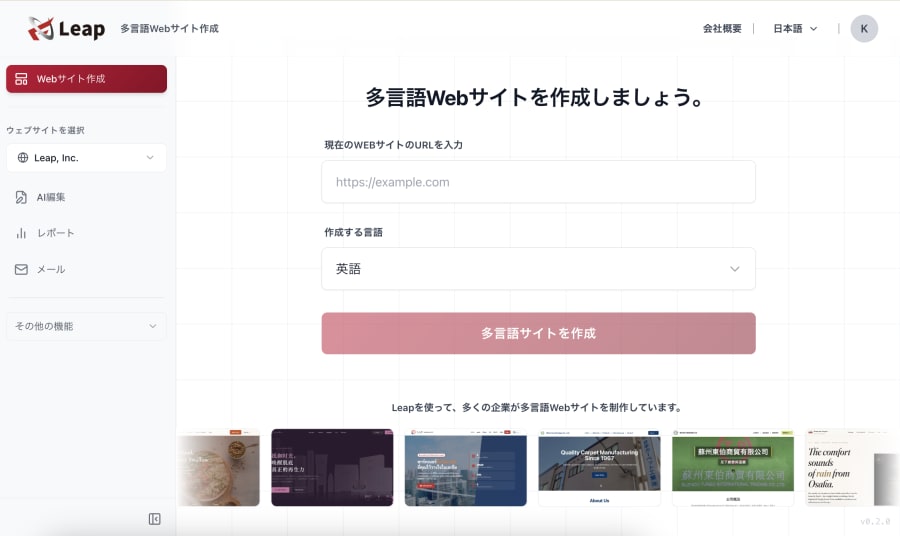
With Leap, a cross-border ecommerce tool that lets AI handle marketing too, you choose a language and target country, and AI suggests localization changes that you can apply right away.
| Item | Shopify (built-in + Translate & Adapt) | Leap |
|---|---|---|
| Monthly price | Basic: from ¥4,850 (monthly billing) | From ¥0 (paid plans from ¥9,800, excl. tax) |
| Fees | Shopify Payments online card rates on Basic: 3.55% domestic, 3.9% international. Third-party payment providers incur a transaction fee (2% on Basic) | 6% of sales (card processing included) |
| Languages | Up to 20 (30 on Plus). Japan-based stores can auto-translate 2 | 1–10 depending on plan, or unlimited |
| Currencies and payments | Local currency pricing (requires Shopify Payments) | USD, EUR, JPY; card payments |
| Localization | Adjusted manually by the merchant per market | Suggested and applied by AI |
| Marketing | Email campaigns (all plans) | Newsletters, CRM, AI blog creation |
| B2B | Shopify B2B (up to 3 catalogs on Basic to Advanced, unlimited on Plus) | Dedicated B2B cart |
| Customization | Highly extensible with themes and apps | Less flexible than Shopify |
*As of November 2026, based on each company's pricing page and help documentation.
If you want to fine-tune design and features with apps, Shopify is the better fit. If you want AI to handle localization for your target countries and overseas marketing as well as translation, Leap is worth a look.
FAQ
Q. How many languages does Shopify support?
A. You can sell in up to 20 languages on the Basic, Grow, Shopify, or Advanced plan, and up to 30 on Shopify Plus. However, stores based in Japan can auto-translate only 2 languages with Translate & Adapt, in addition to the default language.
Q. Are there free Shopify translation apps?
A. Yes. Shopify's Translate & Adapt is free and offers automatic translation for 2 languages plus as many manual translations as you need. Weglot, Langify, and Transcy also have free plans with limited features.
Q. Why isn't my Shopify store translated after adding a language?
A. Adding a language only translates the fixed text in your theme and checkout. Product descriptions and other content need to be translated with a translation app. Some content, such as tags, product images, and certain third-party app content, can't be translated at all.
Q. Is automatic translation good enough to sell internationally on Shopify?
A. You can sell with automatic translation alone, but it's a good idea to have someone review product names, technical terms, and brand messaging. Manual edits aren't overwritten by automatic translation, so start by reviewing your highest-traffic product pages.
Summary and Key Takeaway
On Shopify, adding languages is a built-in feature, while translating your content is the job of an app. Stores based in Japan can auto-translate only 2 languages with the free Translate & Adapt app, so going beyond that means paying for an app or putting in manual translation work.
What's easy to miss is that a translated store isn't necessarily a store that sells. Localization, adapting units, messaging, and even the text in images to each market, isn't a setting you switch on. It's a set of decisions about what to change. Decide which customers you're targeting and what you want to tell them before you worry about how many languages to add, and choosing an app becomes much easier.
Leap is a cross-border ecommerce tool that lets AI handle marketing too. Just chat with it to build a multilingual, multi-currency online store and run overseas marketing such as SEO and email newsletters.
References
- Selling in multiple languages - Shopify Help Center
- Requirements and considerations for selling in multiple languages - Shopify Help Center
- Managing your store's languages - Shopify Help Center
- Add language translations using the Translate & Adapt app - Shopify Help Center
- Translating content automatically using the Translate & Adapt app - Shopify Help Center
- Requirements and considerations for using the Translate & Adapt app - Shopify Help Center
- International SEO for markets - Shopify Help Center
- Pricing - Shopify Japan
- Shopify Translate & Adapt - Shopify App Store
- Weglot ‑ Translate Your Store - Shopify App Store
- langify ‑ translate your store - Shopify App Store
- Transcy - Shopify App Store
- Pricing - Leap