
[Quick Summary] Your Product Listing Page Design Is Directly Affecting Your Sales
BASE (pronounced "bah-zeh") is a Japan-based all-in-one e-commerce platform widely used by small-to-mid-sized Japanese businesses. If you're running a store on BASE and finding that your purchase rate isn't improving despite a growing product catalog — or that visitors are leaving quickly — the product listing page is often the culprit.
This article walks through four areas of optimization for your BASE product listing page, with the goal of making it easy for customers to find exactly what they're looking for: layout design (including column count), using the Category Management App to organize your catalog, sorting bestsellers and new arrivals to the top, and handling sold-out products appropriately.
This isn't just a how-to guide — it explains the reasoning behind each approach so that EC managers and business owners can act on it immediately.
Your Product Listing Page Is Your Store's Shelf Layout
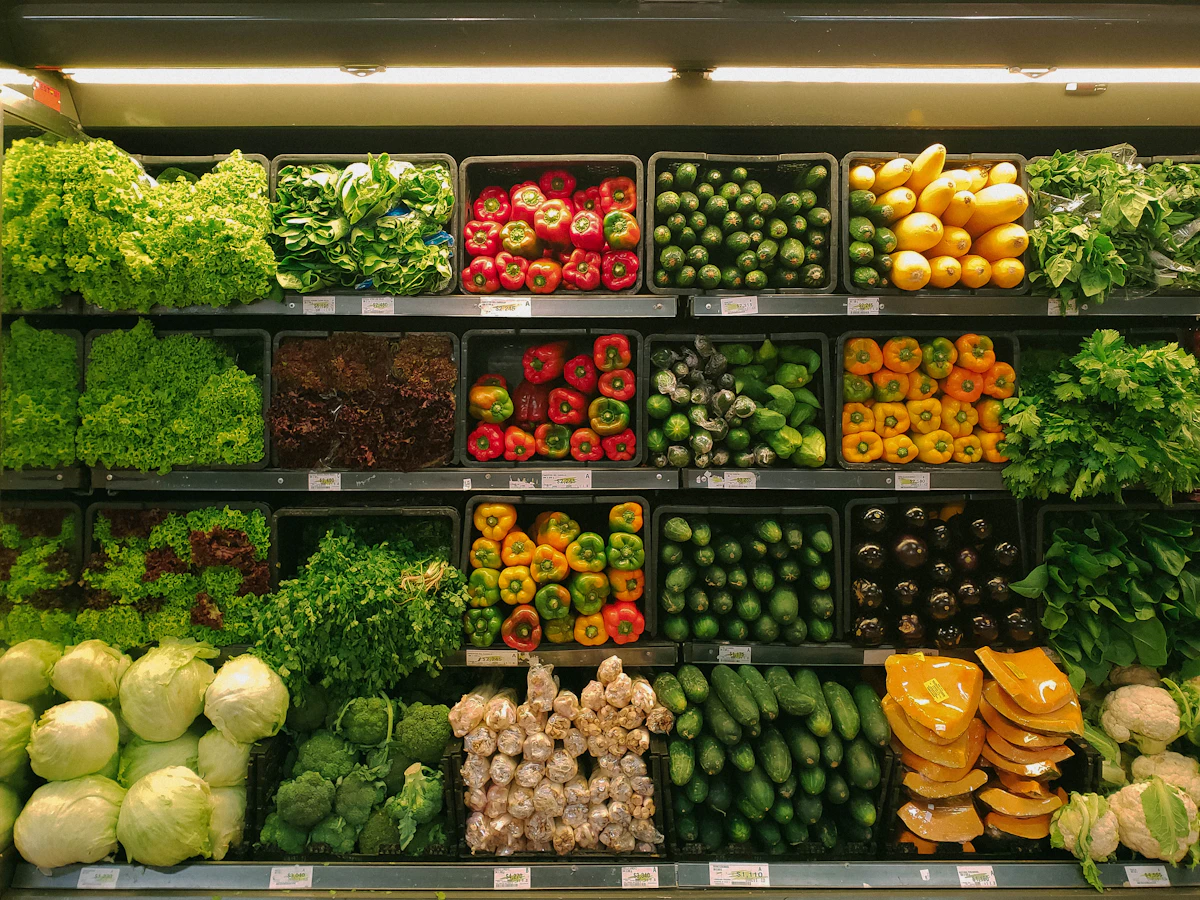
In a physical retail store, shelf height, product placement order, and signage all have a measurable impact on sales. The same is true online: your product listing page functions as the shelf layout of your EC store.
When a visitor arrives, the first thing they see is either your homepage or your product listing page. If they immediately sense that "I can find what I'm looking for here," they'll keep browsing. The moment they feel "I can't tell where anything is," they'll hit the back button.
The "3-second rule" widely cited in e-commerce — that you have about three seconds to capture a user's attention before they leave — applies directly to your product listing page.
BASE is an excellent platform right out of the box, but as your product catalog grows, having all items listed in chronological order stops being sufficient. If you're building toward an operation with annual revenue in the tens of millions to hundreds of millions of yen (roughly $65,000–$650,000+ USD), getting your product listing page right is a business priority you can't skip.
Layout Design for a Clear, Readable Product Listing Page
Choosing the Right Column Count
Depending on your BASE design theme, you can adjust the number of columns displayed in your product listing from the admin panel. Most themes offer a choice of 2, 3, or 4 columns for desktop views, with automatic responsive adjustment to 1 or 2 columns on smartphones.
The key to choosing the right column count is matching it to how your products are best experienced visually. For accessories, jewelry, or crafts where close-up details matter, 2 columns give each product more visual space. For apparel or sporting goods where variety and at-a-glance comparison are important, 3–4 columns work better.
One detail that's easy to overlook: image size consistency. If the first product image varies in dimensions across your catalog, the listing page will appear visually uneven. Before uploading, standardize the aspect ratio across all product photos — this is the most basic step in maintaining a polished, consistent listing page.
Mobile Display Is Not Optional
The majority of BASE shopping happens on smartphones. A layout that looks great on desktop but breaks on mobile is a conversion problem. Many themes let you choose between 1 and 2 columns on mobile, and it's worth testing both. Make it a habit to verify your listing page on an actual device or device emulator whenever you make changes.
Setting Up Category Organization with the Category Management App
What the Category Management App Does
BASE offers a library of extensions called BASE Apps. One of them — the Category Management App — allows you to assign up to three levels of categories (primary, secondary, and tertiary) to your products. It's free to install and becomes increasingly valuable as your product catalog expands.
Here's an overview of the setup process:
- Open the Apps section of your BASE admin panel and install "Category Management"
- On the category settings page, click "+ Add Primary Category" and enter a category name
- Click the "+" next to each primary category to add secondary and tertiary categories
- In each product's detail page within the product management panel, check the categories you want to assign and save
Once categories are set up, a category list appears automatically on your shop page, and category-specific product listing pages are generated. Where and how categories are displayed depends on your theme, so always check the live shop view after making changes.
Design Categories Around How Customers Search, Not How You Think About Products
The most important principle in category design is this: organize by how customers look for things, not by how you organize your inventory.
For an accessories shop, a clean starting structure is by product type: Earrings, Necklaces, Bracelets. From there, adding price-range axes (Under ¥3,000 / ¥3,001–¥5,000) or occasion axes (Gifts / Everyday Wear) significantly improves usability for visitors with a specific purpose in mind.
For apparel, a three-tier hierarchy — Women's → Outerwear → Coats — lets even a large catalog stay navigable without overwhelming customers.
Keep category names short and intuitive. Heavy use of an "Other" category tends to reduce browsing depth. Also worth knowing: a single product can belong to multiple categories. Creating a "New Arrivals" category and tagging products for a set period after their release date is a useful ongoing practice.
Sorting Bestsellers and New Products to the Top
BASE's Built-In Sort Functionality
From the product management section of the BASE admin panel, you can reorder products by dragging them, or by clicking the order number and typing a position directly. The number input field lets you specify exactly where in the full product list an item should appear.
A practical sort priority structure looks like this:
- Positions 1–5: High-priority new arrivals, seasonal items, or featured products
- Middle positions: Core bestselling products
- Lower positions: Products with low or near-zero inventory
Revisit Your Bestseller Definition Regularly
Moving bestsellers to the top is sound strategy, but the definition of "bestseller" needs regular revisiting. Last year's top sellers aren't guaranteed to perform the same way this year — seasonal shifts, trend changes, and new product introductions all affect the rankings. Build a monthly review step into your operations to update the sort order based on current data.
BASE also offers a Sale App that displays discount rates and post-discount prices, which creates visual purchase incentive. Placing sale items near the top of your listing can direct visitor attention while simultaneously moving inventory.
Handling Sold-Out Products Correctly
How SOLD OUT Works on BASE
When a product's inventory count reaches zero, BASE automatically displays a "SOLD OUT" label on both the product listing page and the product detail page. For products with variations (such as size or color), SOLD OUT appears once all variations have reached zero inventory.
The impact of sold-out products on a listing page is larger than most operators expect. When SOLD OUT items appear near the top of your listing, they can dampen purchase intent and leave a negative impression of the overall shop.
Moving Sold-Out Products to the Bottom
BASE does not currently offer an automatic function to push sold-out products to the bottom of your listing. You'll need to handle this manually. The most effective approach is to treat "move sold-out items to the bottom" as a regular weekly task. For shops with large catalogs, making this a scheduled Monday morning routine helps keep the listing page current.
For products with no expected restock, consider setting them to "private" (hidden from the listing). That said, there's a counterargument worth considering: a SOLD OUT label on a popular product can signal "this shop's products actually sell," which some brands deliberately leverage to build credibility. The right call depends on your brand positioning and restock plans.
CSS Customization for SOLD OUT Display
Some BASE themes allow you to adjust the visual appearance of the SOLD OUT label or the strikethrough on prices via CSS. However, changes that conflict with BASE's store display standards are a risk, so any HTML or CSS editing should be approached carefully and at your own discretion.
Improvement Cases from Real BASE Shops
A well-documented pattern among successful BASE operators is that category management and listing optimization drive direct, measurable improvements in purchase rate.
One handmade accessories shop on BASE introduced the Category Management App when its catalog exceeded 100 products. By organizing categories along three axes — material, price range, and occasion — they saw measurable improvement in pages-per-visit and purchase rate. Multiple BASE user communities have shared similar reports.
A BASE shop selling sporting goods established a rule to move sold-out products to the bottom of the listing every Monday. Maintaining that discipline kept the listing page fresh and earned direct feedback from customers along the lines of "I can always find what I'm looking for."
What these cases share is the same two principles: customer-first design, and consistent, ongoing review. Setting up your listing page isn't a one-time task — regularly updating it in response to catalog growth, seasonal changes, and sales data is what sustains improvement over time.
FAQ
Q1. Will installing the Category Management App affect how my existing products are displayed?
Installing the app alone won't change your current product display. Categories only appear on your shop page — as a category list and category-specific product listing pages — after you've set up categories and assigned products to them. Note that category display position varies by design theme, and some older themes may not support the Category Management App at all. Always preview your shop after installing the app before adjusting any public-facing settings.
Q2. When I have a large product catalog, is there a more efficient way to manage sort order?
Yes — the number input field in BASE's product management panel is significantly faster than drag-and-drop for large catalogs. You can type an exact position directly without manually dragging through a long list. Beyond that, the most effective way to minimize sort-order work over time is to decide the target position at the moment you register each product. A reactive approach — sort when you add products, sort when items go out of stock — keeps the listing in better shape than batching it into periodic overhauls.
Q3. Should I hide sold-out products or leave them visible?
It depends on your shop's approach. For products with no restock planned, setting them to private keeps the listing clean and improves the browsing experience for visitors. On the other hand, SOLD OUT labels on popular products can reinforce shop credibility, and combined with a restock notification feature, they can serve as a way to capture email addresses from interested customers. The right answer is product-by-product: weigh inventory status, restock prospects, and your brand direction for each item.
Conclusion: Optimizing Your Product Listing Page Raises the Floor of Your Entire Shop
There are many levers to pull when growing sales on BASE, but product listing page optimization is one of the most immediately actionable — and one of the most reliably effective. Implementing the four areas covered in this article — layout design, the Category Management App, sort order strategy, and sold-out product management — builds a shop where customers reach the right product without friction.
A well-structured listing page improves browsing depth, add-to-cart rates, and purchase completion rates. The setup effort is modest. Start with two things: install the Category Management App, and update your sort order based on the past month of sales data.
From Leap | Resources for Cross-Border and Overseas Business
For EC operators considering overseas sales and cross-border expansion: the principles behind an effective product listing page apply equally to international storefronts — and the complexity compounds when multilingual design and localization are involved.
Leap supports small-to-mid-sized businesses building multilingual websites and EC stores for international markets. Our focus is on localization over translation: building pages designed around how buyers in each target market actually browse and buy.
We publish practical resources for cross-border EC and international business on an ongoing basis.
References
- BASE Help | How do I mark a product as SOLD OUT?
- BASE Apps | Category Management
- BASE U | Setting Up the Category Management App to Make Products Easier to Find
- BASE U | The Product Management Page Has Been Updated
- BASE Help | How to Use the Category Management App
- BASE Help | Admin Panel (Product Management)
- BASE Design Theme UNIVERSE User Guide
- BASE Design Theme DEPARTMENT User Guide